MonoScript | Figma plugin for routine tasks
How I automated repetitive tasks in my day-to-day design workflow
Try It Out
Feel free to test the prototype above to see how the UI works, or try the fully functional version in Figma.
Why: 0% hallucinations
There’s a class of tasks in Figma you either do by hand or hand off to AI — the built-in chat now, or any LLM over MCP. By hand: slow, and it burns cognitive effort that’s better spent on design. Through AI: you need a paid subscription, and it redoes the work from scratch every time — which means it can get it wrong every time.
A script is a result you check once and stop thinking about. It won’t skip a layer ten levels deep, won’t invent an API property that doesn’t exist, and does the exact same thing on icon 9,000 as it did on icon 1. An LLM over MCP, by the way, writes the same kind of code — just new every time, and none of it sticks around. AI is good when the task is different every time; a script is good when it’s the same task, every time.
Here are some examples of that kind of task.
Icons
- Recolor 9,000 Phosphor icons in one go.
- Convert stroked icons into filled vectors and union their shapes—otherwise, they won’t scale or recolor cleanly within components.
- Group target icons into component variants and reorder them so the Regular weight always appears first.
All of these are tedious manual chores, but while reordering takes forever, the first two heavy operations cause Figma to freeze completely.
Components and Variables
- Standardize all component properties and attributes into a single naming convention (e.g., camelCase or kebab-case).
- Generate a scaffold for a newly created component: attach all standard properties and attributes in a single click.
- Transfer variables from one collection to another while preserving layout bindings—a feature Figma doesn’t natively support at all (at least as of writing this case study).
Cleaning Up Legacy Files & External Assets
- Locate and purge unused text styles.
- Clean up imported HTML assets: bind variables and styles to matching elements, and round fractional pixel values to integers.
While tools like Scripter exist, they suffer from clunky UX and outdated TypeScript support. So I decided to build my own :)
A Bridge Between LLMs and Figma
The development pipeline works like this:
- Prompt an LLM to generate a script (I used Gemini—it excels at rewriting complete code blocks when requesting adjustments).
- Paste it into the plugin and hit run.
- If it throws an error, click Debug for AI and feed the report back into the model.
- Paste the revised code back into the plugin.
The editor is powered by Monaco—the same engine behind VS Code. Anyone familiar with VS Code feels right at home immediately.
Debug for AI
A single click packages everything the LLM needs to fix the script: script name, source code, TypeScript diagnostic errors, runtime exceptions with line numbers and stack traces, and full console output. It formats everything into Markdown and copies it straight to the clipboard.
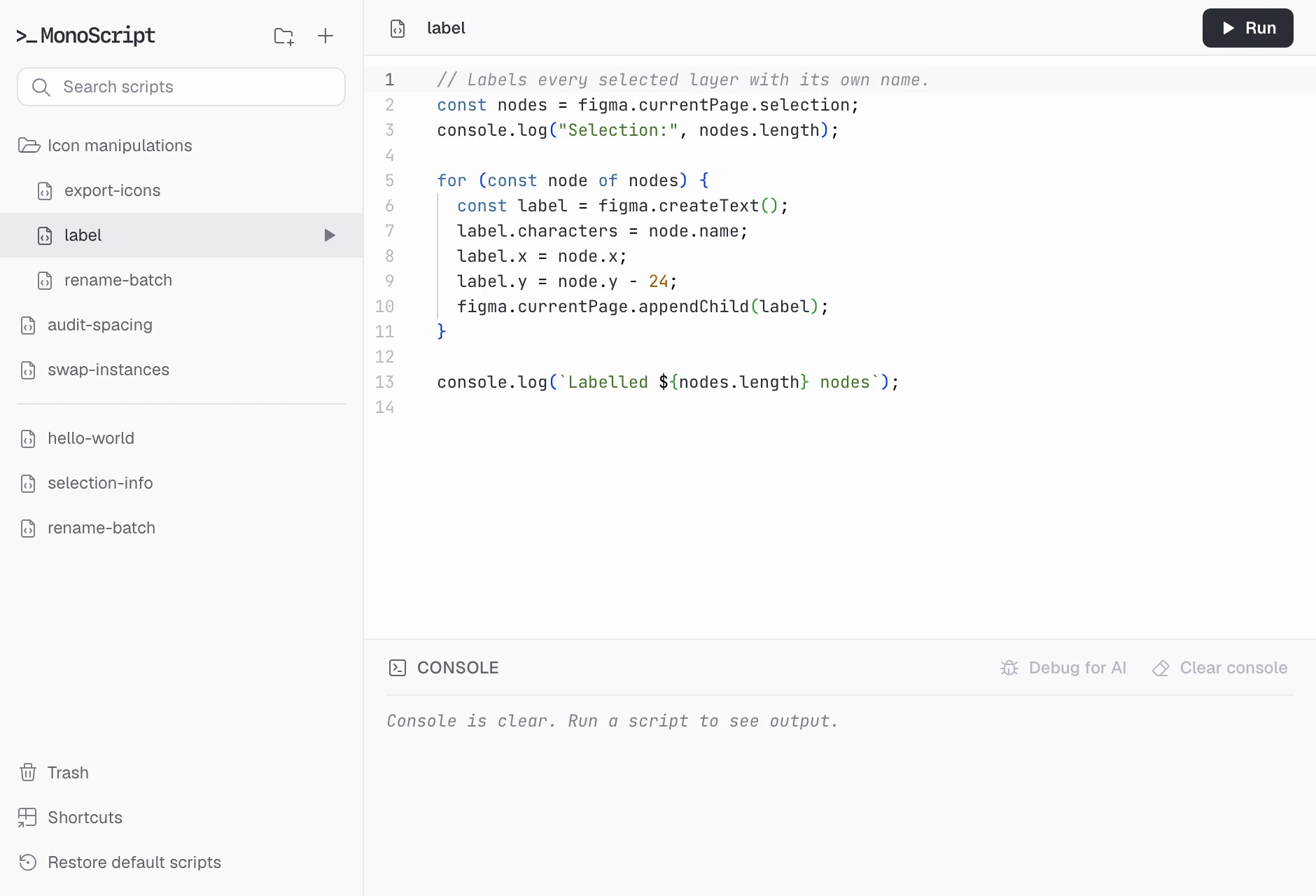
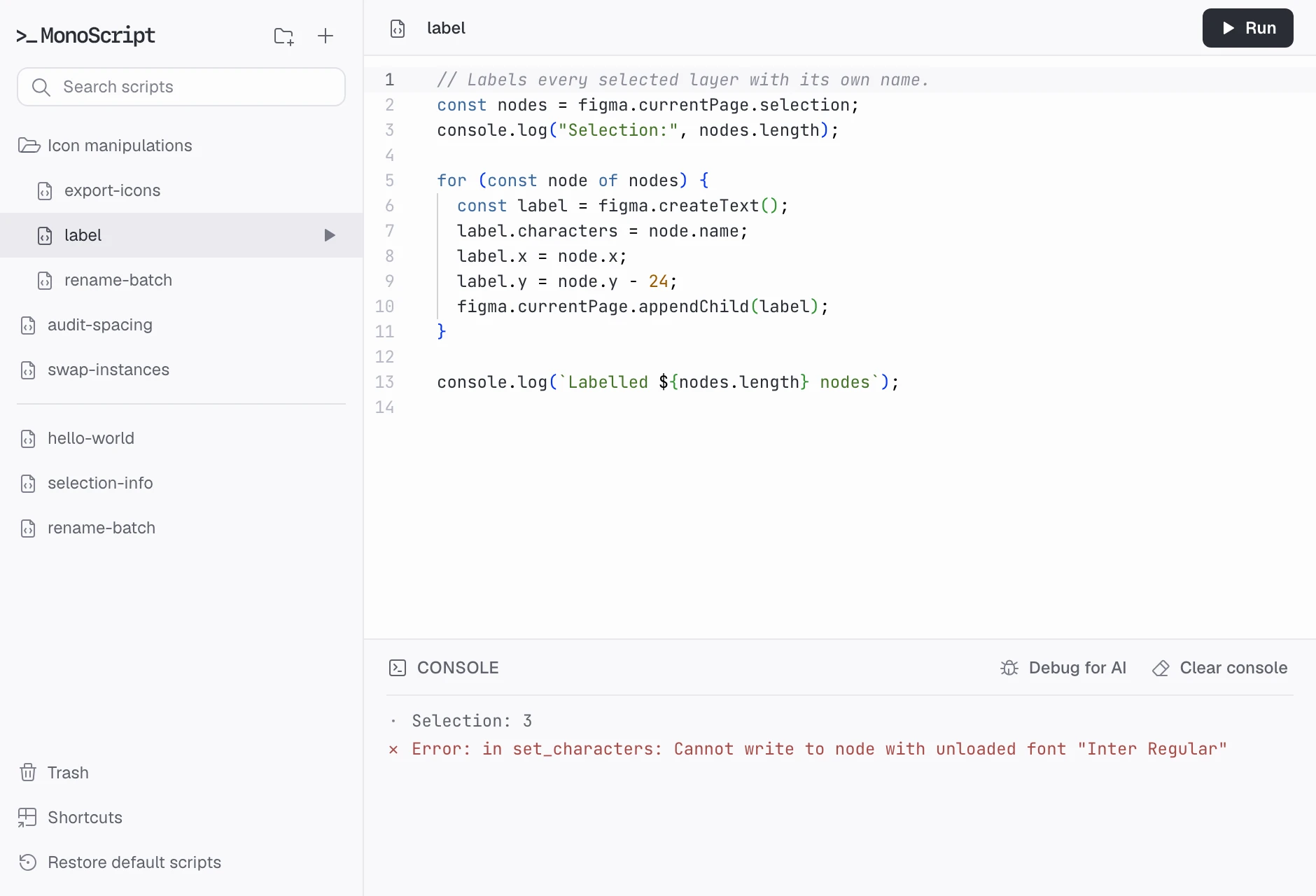


# label

**SCRIPT:**
```typescript
// Labels every selected layer with its own name.
const nodes = figma.currentPage.selection;
console.log("Selection:", nodes.length);

for (const node of nodes) {
  const label = figma.createText();
  label.characters = node.name;
  label.x = node.x;
  label.y = node.y - 24;
  figma.currentPage.appendChild(label);
}

console.log(`Labelled ${nodes.length} nodes`);
```

**ERRORS FOUND:**

- Runtime (line 7:9): **Error** — in set_characters: Cannot write to node with unloaded font "Inter Regular"
  ```
  Error: in set_characters: Cannot write to node with unloaded font "Inter Regular"
      at Object.set [as characters] (<anonymous>)
      at script:s-label.js:7:9
      at eval (<anonymous>)
      at runScript (<anonymous>)
  ```

**CONSOLE OUTPUT (last 30 entries):**
```
[log] Selection: 3
[error] Error: in set_characters: Cannot write to node with unloaded font "Inter Regular"
``` # label
**SCRIPT:**
```typescript
// Labels every selected layer with its own name.
const nodes = figma.currentPage.selection;
console.log("Selection:", nodes.length);
for (const node of nodes) {
const label = figma.createText();
label.characters = node.name;
label.x = node.x;
label.y = node.y - 24;
figma.currentPage.appendChild(label);
}
console.log(`Labelled ${nodes.length} nodes`);
```
**ERRORS FOUND:**
- Runtime (line 7:9): **Error** — in set_characters: Cannot write to node with unloaded font "Inter Regular"
```
Error: in set_characters: Cannot write to node with unloaded font "Inter Regular"
at Object.set [as characters] (<anonymous>)
at script:s-label.js:7:9
at eval (<anonymous>)
at runScript (<anonymous>)
```
**CONSOLE OUTPUT (last 30 entries):**
```
[log] Selection: 3
[error] Error: in set_characters: Cannot write to node with unloaded font "Inter Regular"
``` Non-Blocking Errors
Semantic validation is intentionally disabled. Figma regularly updates its API with new methods that Monaco’s language service might not recognize yet, flagging valid code as an error. In this context, a false positive is far more frustrating than a missed warning, so semantic checks remain silent. Syntax errors stay enabled, as they are actual blockers that prevent script execution.
Craft & Execution
Icons
I used Tabler Icons. Scaling them down from their native 24 px grid to 16 px caused glyph paths to fall off the pixel grid, resulting in blurry renders. Instead of picking a pre-made 16 px icon set, I decided to preserve Tabler’s visual aesthetics and manually redrew the icons on a 16 px grid for crisp rendering on 1080p displays.
Folder Morphing
The open and closed folder icons share the exact same vector path command sequence. Instead of swapping graphics, the vector points morph smoothly between states.
Empty state
The library almost always has something in it — default scripts or your own — and after a delete, auto-select immediately jumps to the next one. The only time the screen is actually empty is when everything’s gone. That’s when the illustration shows up: a sleeping window, four shortcuts, and a New script button.
Micro-Interactions
Folder expansion states, modal overlays, and context-aware borders that appear when scrolling the sidebar and automatically disappear once scrolled to the top.
Quality Assurance & Verification
I used pixel-diff overlays—layering Figma designs directly over production UI screenshots to catch subtle visual discrepancies that are easy to miss. I then stress-tested the plugin across various edge cases, state combinations, and error scenarios.
Next, I plan to set up an automated audit workflow [specify verification steps here] to minimize the risk of visual regressions or bugs slipping through.
Designing for the Figma Community
Building a personal developer tool vs. releasing a product for thousands of strangers requires a fundamentally different mindset.
- Onboarding. I initially designed a welcome screen with an illustration, but eventually scrapped it: Figma plugins lack a persistent install lifecycle, making it impossible to reliably detect a user’s first launch. Instead, new users get a default “Hello” script preloaded in their library that doubles as an interactive tutorial right inside the code comments.
- Default Scripts. Built-in scripts can be freely edited or deleted, with a dedicated “Restore Default Scripts” option to revert changes at any time.
- Privacy. Configured with
networkAccess: none. The plugin operates 100% locally—zero data leaves the device. For a tool designed to bulk-edit proprietary design libraries, strict local execution is a core requirement, not a luxury feature.
What’s Next
Community Script Catalog. A shared repository where users can publish, discover, and vote on community scripts—eliminating the need to write from scratch what someone else has already solved.
Custom Editor Theme. Fully adapting Monaco’s UI to match the MonoScript design system (tooltips, context menus, dropdowns, etc.).
Enhanced Micro-Animations. Refining micro-interactions and transition motion to make the UI feel even more responsive and tactically pleasing.